> For the complete documentation index, see [llms.txt](https://xoxoday.gitbook.io/empuls/llms.txt). Markdown versions of documentation pages are available by appending `.md` to page URLs; this page is available as [Markdown](https://xoxoday.gitbook.io/empuls/getting-started-for-admins/connect-through-groups.md).
# Connect Through Groups
Create and manage communication groups for teams
Empuls groups are workspaces where your team members can communicate and collaborate seamlessly. Create work-related groups or interest-based groups, as per your organization's needs.
## Town Hall Group
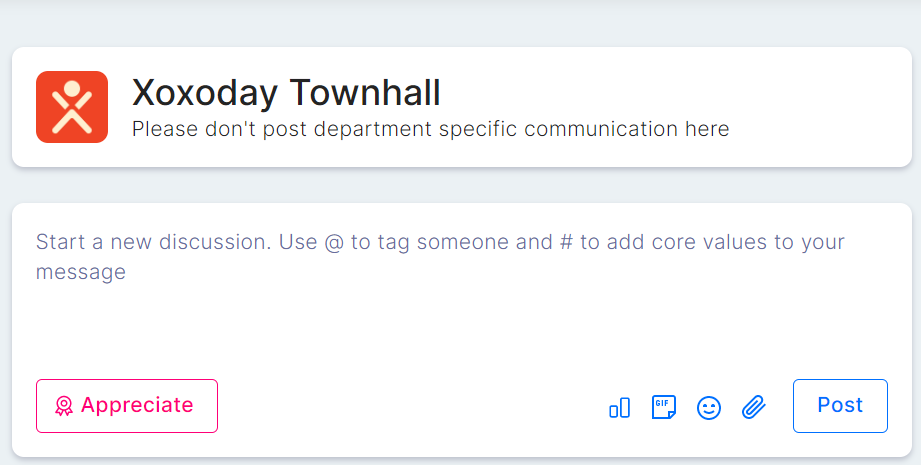
Town Hall is the **home page** on Empuls. All users with access to your account will have access to the Town Hall. User with "Super Admins" access have admin access to the Town Hall. Any communication shared on the Town Hall, e.g. Birthday, Work Anniversary, New Hires & other announcements can be shared on this group, for maximum reach.
### What can one do on a group?
* Start new conversations, attach documents, and comment on other's posts.
* Make announcements and send notifications to all group members.
* Share greetings and appreciation with your teammates.
* Give peer-to-peer awards.
* Create a Poll.
### How to create a group?
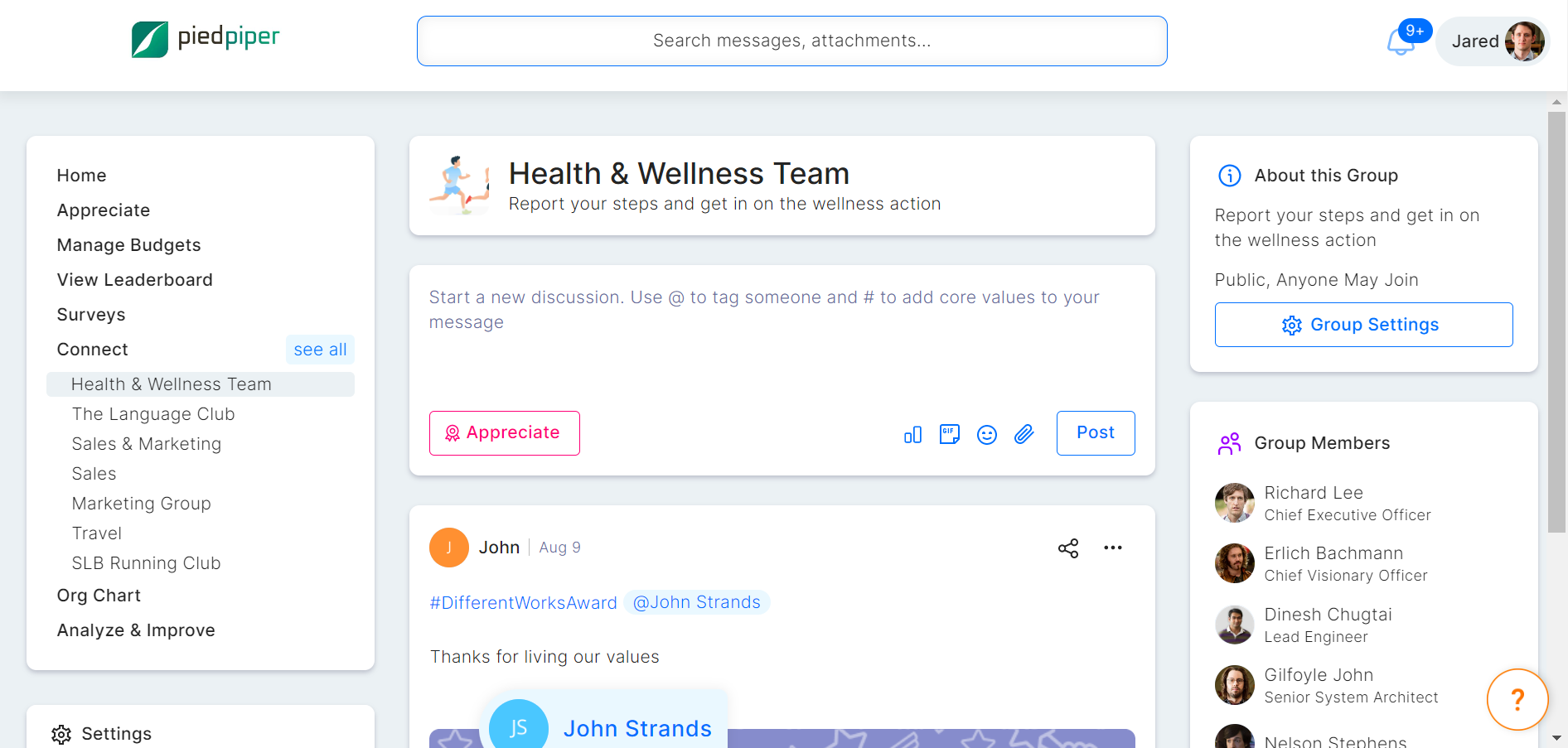
* Navigate to **Connect > See All**. It takes you to the **View All Groups** page.
* Click on the **Create Group** button, and add the relevant details in the *New Group Details* form.

{% hint style="info" %}
Anyone in the organization can join the open groups. Closed groups require approval from the respective group admins.
{% endhint %}
### Add Members to a Group
To add members to a group, enter the *Group Information* page by clicking on the group name. Now follow the below steps to add members to it:
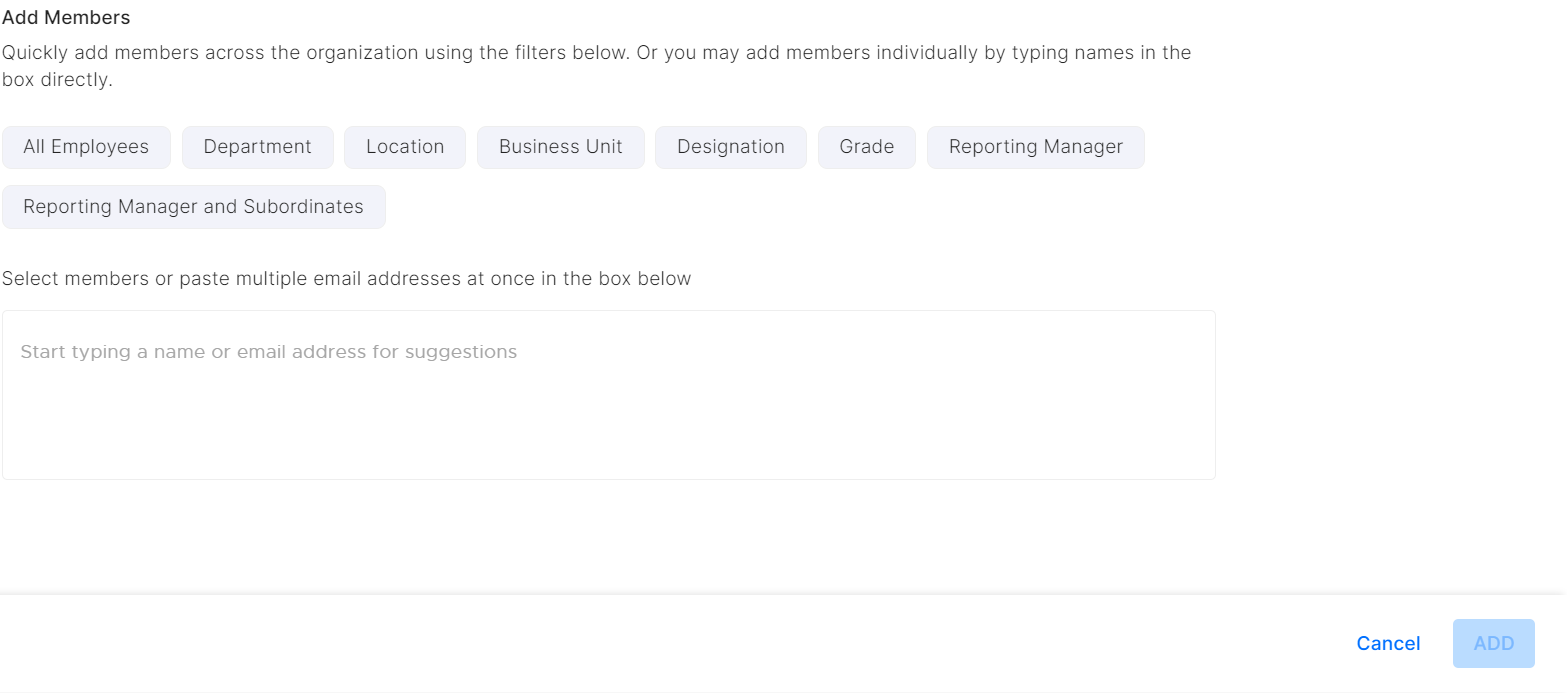
* Click on **ADD MEMBERS** at the bottom right corner under Group Members.
* Enter the email address of your teammates and click `ADD`or add members across the organization using the filters
* Notify new group members through an email as you add them.

Great! Now that you know how to create groups for collaboration, let's find out how to measure employee engagement through engagement surveys.